Run Your Business From the Right IP.
Dedicated, encrypted IPs in the countries you need. No complex setup. Enable in one click.
 Datacenter & Residential IPs Across 110+ Countries
Flexible Monthly or Yearly Plans. No Lock-In.
Stable IPs for Long-Term Business Operations


Different jobs. Different IPs. One platform.
Pick what fits — datacenter, ISP, residential, or VPN. Mix freely without switching providers.

Datacenter IPs & Proxies
Dedicated, high-speed IPs. Ideal for e-commerce and high-volume tasks across 63+ countries.

Static ISP IPs & Proxies
A dedicated, ISP-registered fixed address. Trusted by social platforms across 40+ countries.

Residential IPs & Proxies
Real home IPs. Built for data collection and automation.

VPN for Individual & Teams
Encrypted access for privacy, streaming, and browsing across 80+ countries.
Built for the work you do
From privacy to professional operations — Surflare fits your workflow.

Multi-accounting
Run and manage multiple accounts safely. Dedicated IPs keep each profile isolated — platforms stay trusting, operations stay uninterrupted.

E-commerce
Monitor competitor prices and manage supplier accounts across markets. Proxies that look like real local users give you accurate, unblocked data.

Web Scraping
Collect public web data at scale. Rotating residential IPs handle rate limits and detection so your scrapers keep running without interruption.

AI & Data Pipelines
Feed AI models with clean, large-scale training data. High-speed proxies bypass geo-blocks and CAPTCHAs for fully automated collection.

SEO & Marketing
Track keyword rankings and SERP results across regions. Geo-targeted proxies deliver accurate local search data for competitive analysis at scale.

Privacy & Remote Work
Encrypted traffic routed through a fixed dedicated IP. No logs, no shared addresses — secure access for remote teams and business operations.

Global reach, precise targeting.
High-speed VPN servers and dedicated IPs in 110+ countries — target the exact region your business needs.
View all server locations →
Your IP, ready on every device
Buy any IP — datacenter, residential, or VPN — and use it directly in the Surflare app. No manual proxy config, no complex setup.
Available on iOS, Android, Windows, Mac, Linux, browser extensions, and routers.
Download the app →Click to connect. Or code it in.
Use the Surflare app for a one-click VPN experience, or integrate SOCKS5/HTTP proxy directly into your tools and scripts.
Surflare App
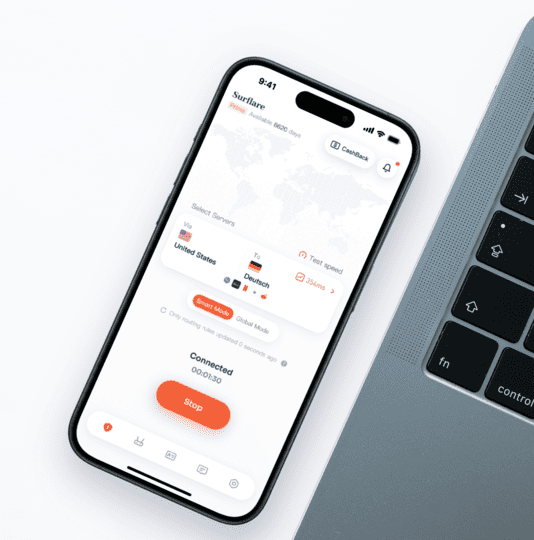
- One-click connect on all platforms
- Smart routing with 400+ app rules
- Multi-hop VPN for extra privacy
- Full traffic encryption
SOCKS5 / HTTP Proxy
# SOCKS5 proxy
curl --proxy socks5://user:pass@proxy.surflare.com:1080 \
https://api.ipify.org
# HTTP proxy
curl --proxy http://user:pass@proxy.surflare.com:8080 \
https://api.ipify.org
# Python example
proxies = {"http": "socks5://user:pass@proxy.surflare.com:1080"}
- SOCKS5 & HTTP protocol support
- Works with scrapers, bots, and dev tools
- Per-connection IP control
- Rotating or static endpoint options

24-hour live support
24/7 support across every time zone. Whether it's initial setup, a connection issue, or a billing inquiry — reach us via live chat or email and get answers fast.
Find the plan that fits your work.
VPN, Datacenter IP, Residential IP — choose what you need, or mix and match.