Surflare VPN for Router
- Whole-home VPN, no per-device app needed
- Covers smart TVs, game consoles, and IoT devices that can't run a VPN app
- Same Surflare account, same VPN locations, same Smart Routing rules as the app

What is Surflare VPN for Router?
It's the Surflare app for your OpenWrt router. Install once and the router becomes a Surflare client itself, sharing the same account, the same VPN locations, and the same Smart Routing rules as your desktop and mobile apps.
Supported Routers
Surflare provides the software only. Purchase the router hardware separately from GL.iNet, Amazon, Shopee, Taobao, or any other authorized reseller.
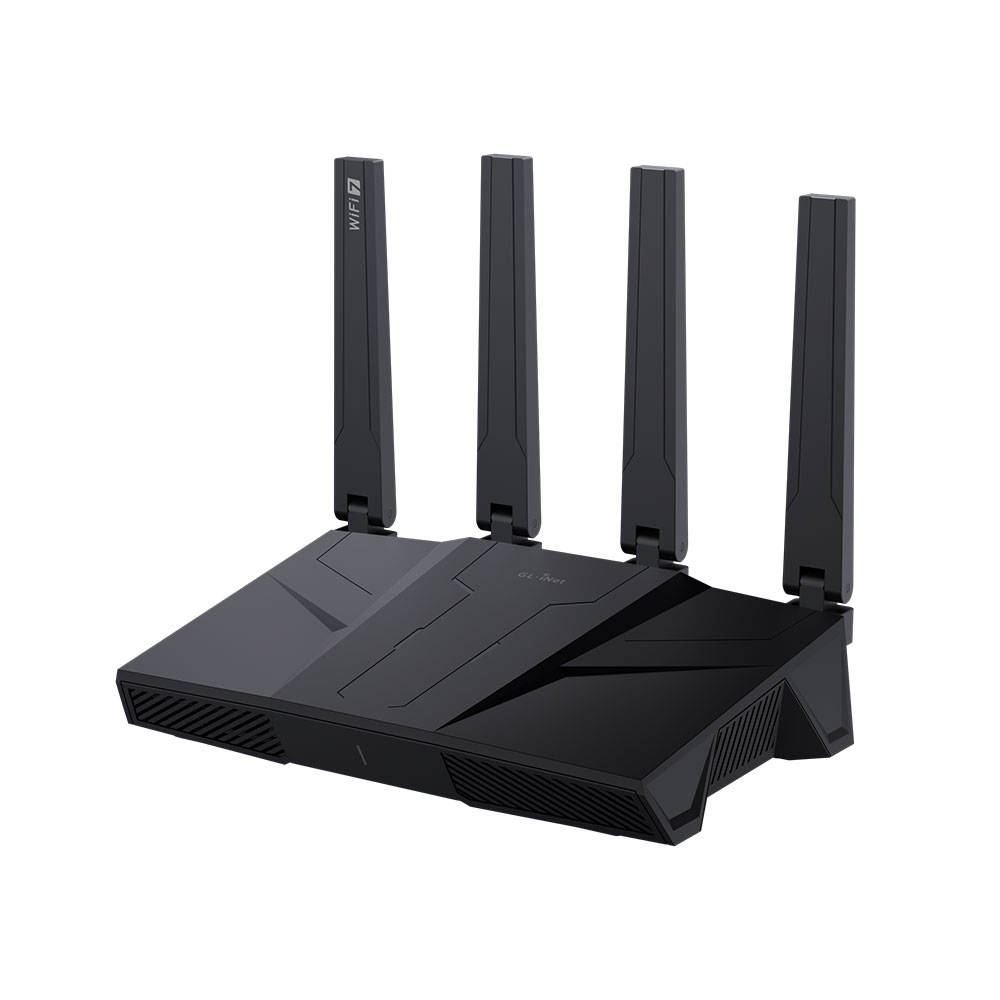
GL.iNet GL-BE9300
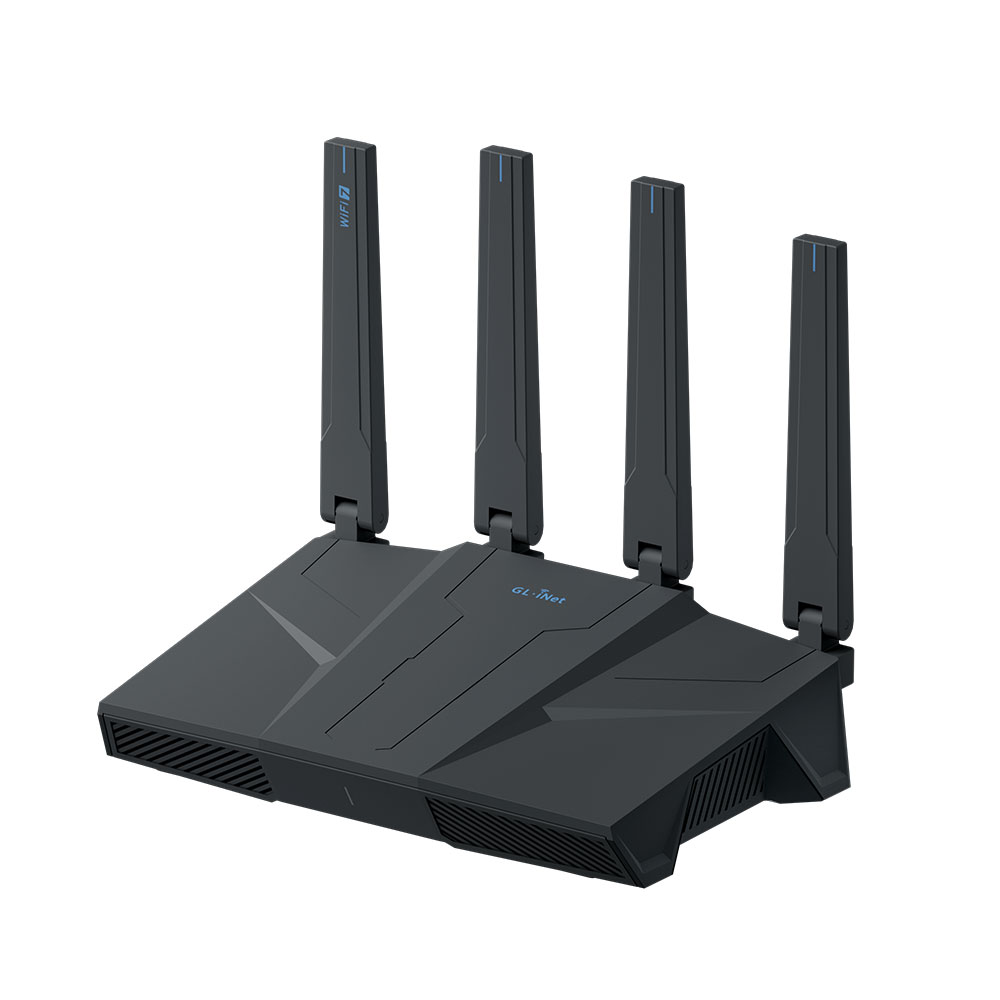
GL.iNet GL-BE6500
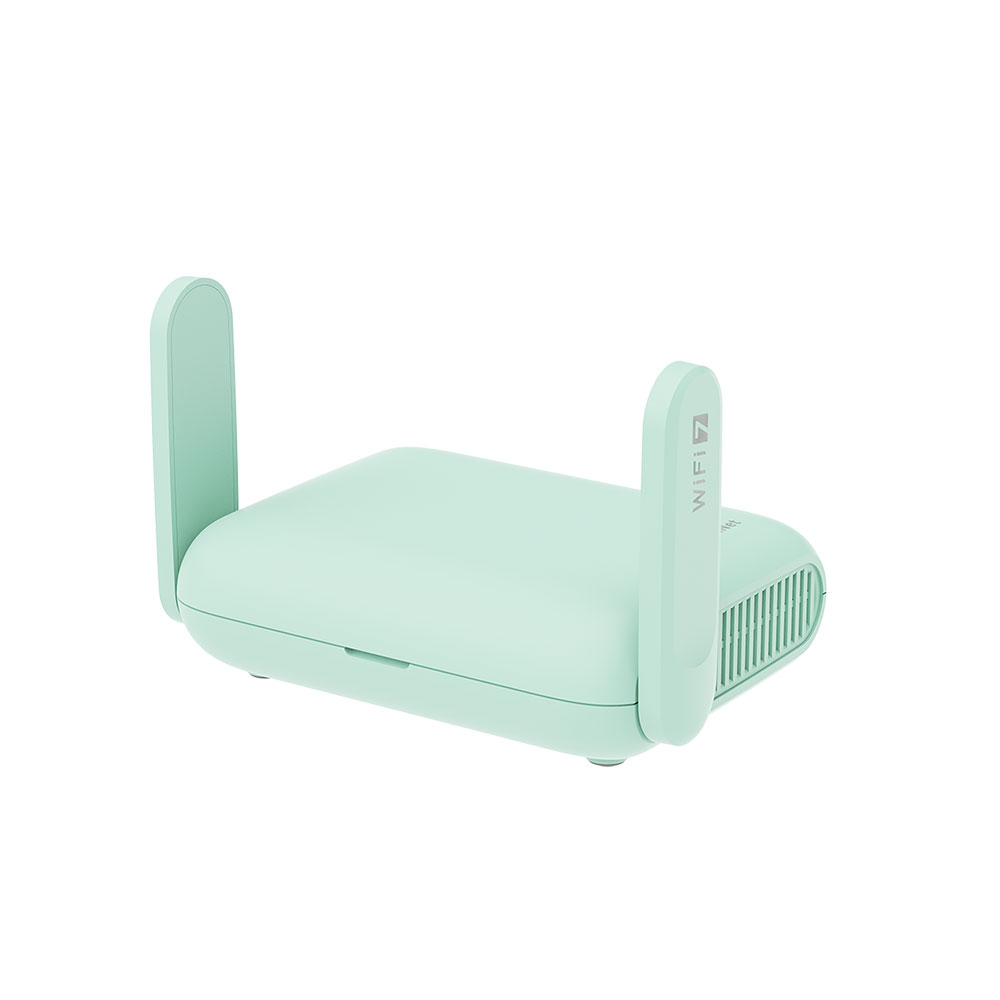
GL.iNet MT3600BE
Why use Surflare VPN for Router?
Whole-home protection
Install once on the router and every device on your network is protected.
IoT & smart TV friendly
Smart TVs, consoles, and IoT devices that can't run a VPN app get the same protection.
Worldwide VPN locations
Pick from every Surflare VPN location available on the apps — same global network, accessible from your router.
All Prime features included
Multi-Hop VPN, Smart Routing rules, and Kill Switch — every Prime feature is available on the router.

Secure Every Device, All the Time
From family homes to small-office networks, Surflare on your router protects every device on your Wi-Fi or LAN — including the ones that can't run a VPN app of their own. Once installed, protection stays on 24/7, even when your phone or laptop is asleep.
- Smart TVs and streaming devices
- Game consoles (PS5, Xbox, Switch)
- IoT devices and smart home appliances
- Laptops, phones, tablets, NAS, and printers

Simple to set up, complete in features
Most ways to put a VPN on a router involve hand-editing config files, copying keys, and accepting a stripped-down feature set. Surflare takes a different approach.
- Zero config, no keys to copy. No config files, no server addresses, no key pasting. Run one install command, sign in with your email and password — done.
- Full Surflare features, not a stripped-down router edition. Same VPN locations as the desktop and mobile apps, plus Multi-Hop VPN, Smart Routing rules, and Kill Switch — all working on the router with no feature cuts.
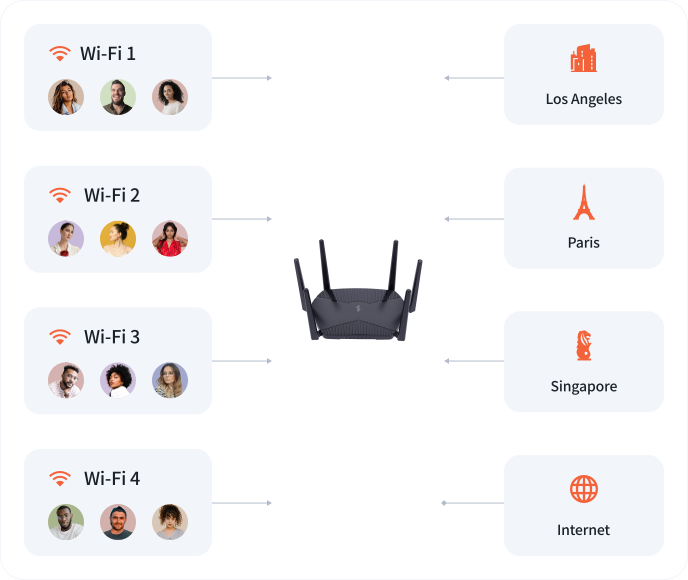
Up to 4 VPN locations on one router
Split your LAN into up to 4 independent subnets on a single router, each with its own VPN exit (or direct internet). Devices in different subnets reach the internet from different regions and IP addresses simultaneously — ideal for managing multi-region e-commerce stores, separating personal vs work traffic, or reducing account-association risk across platforms.
- Up to 4 LAN subnets, each with an independent VPN exit
- One subnet can stay on local internet (no VPN) for banking and local services
- Different devices reach different regions — same router, same home or office

Pair with a Dedicated IP
Bind a Surflare Dedicated IP to your router and the whole office shares one fixed, exclusive exit address — avoiding shared IP bans and CAPTCHAs on Amazon, Shopify, TikTok, ChatGPT, and other services that flag shared VPN traffic.
- Datacenter IP — stable static address, ideal for e-commerce operations
- Residential IP — assigned by real ISPs, better for live streaming and social media
How to install Surflare VPN for Router
Three steps, about 5 minutes.
Step 1 - Get your Surflare Prime subscription
Router VPN requires Surflare Prime. Pick a plan and register an account.
See Prime plans
Step 2 - SSH into the router and install
SSH into the router (default for GL.iNet: ssh root@192.168.8.1), then run the one-line install command:
curl -fsSL https://www.surflare.com/static/router-setup.sh | sh Step 3 - Link account & connect VPN
Open http://192.168.8.1 →
Applications → Surflare →
sign in to link the router, then pick a VPN location and connect.
Turn your router into a Surflare gateway
Five-minute install on the router shell. Sign in, pick a VPN location, and every device on your network is protected.