Configure Smart Routing Rules
Surflare VPN supports two routing modes:
Smart Routing - Only routes traffic for popular Apps through VPN, while other Apps uses your local Internet directly.
Global Routing - Routes all Apps traffic through VPN.
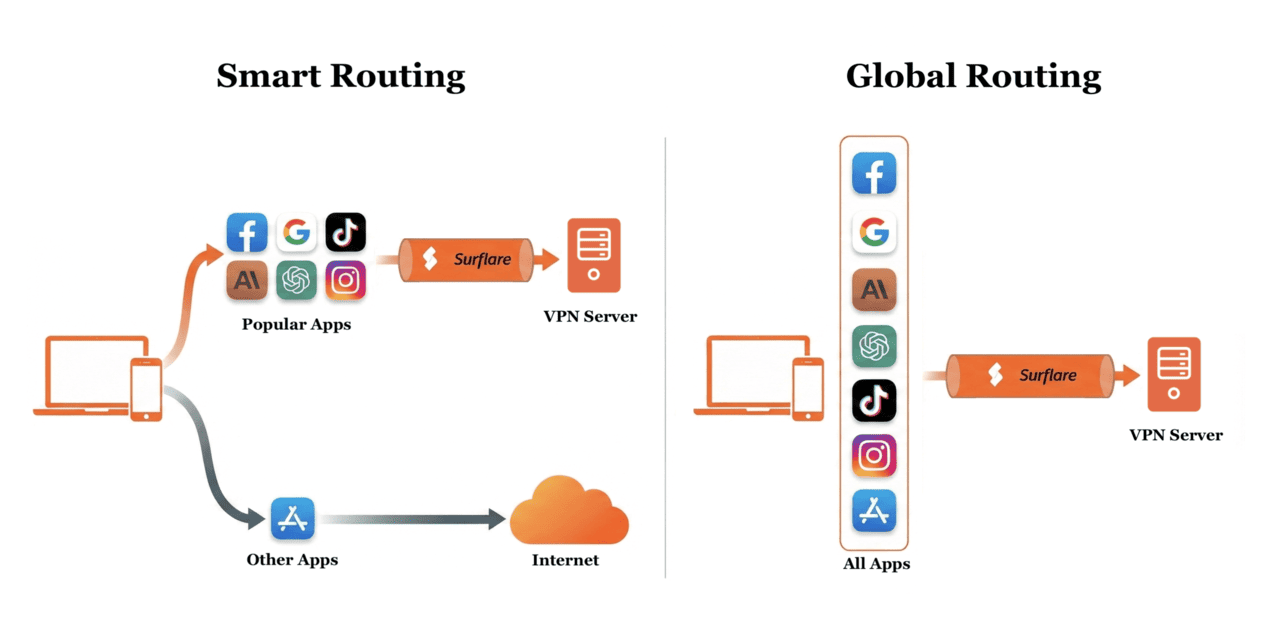
You can customize Smart Routing policies, however, generally you don't need to configure policies. When you enable Smart Routing, we provide default policies that work well for most users.
Step 1: Open Smart Routing Policies
• Tap the "Options" tab at the bottom of the app
• Select "Smart Routing"
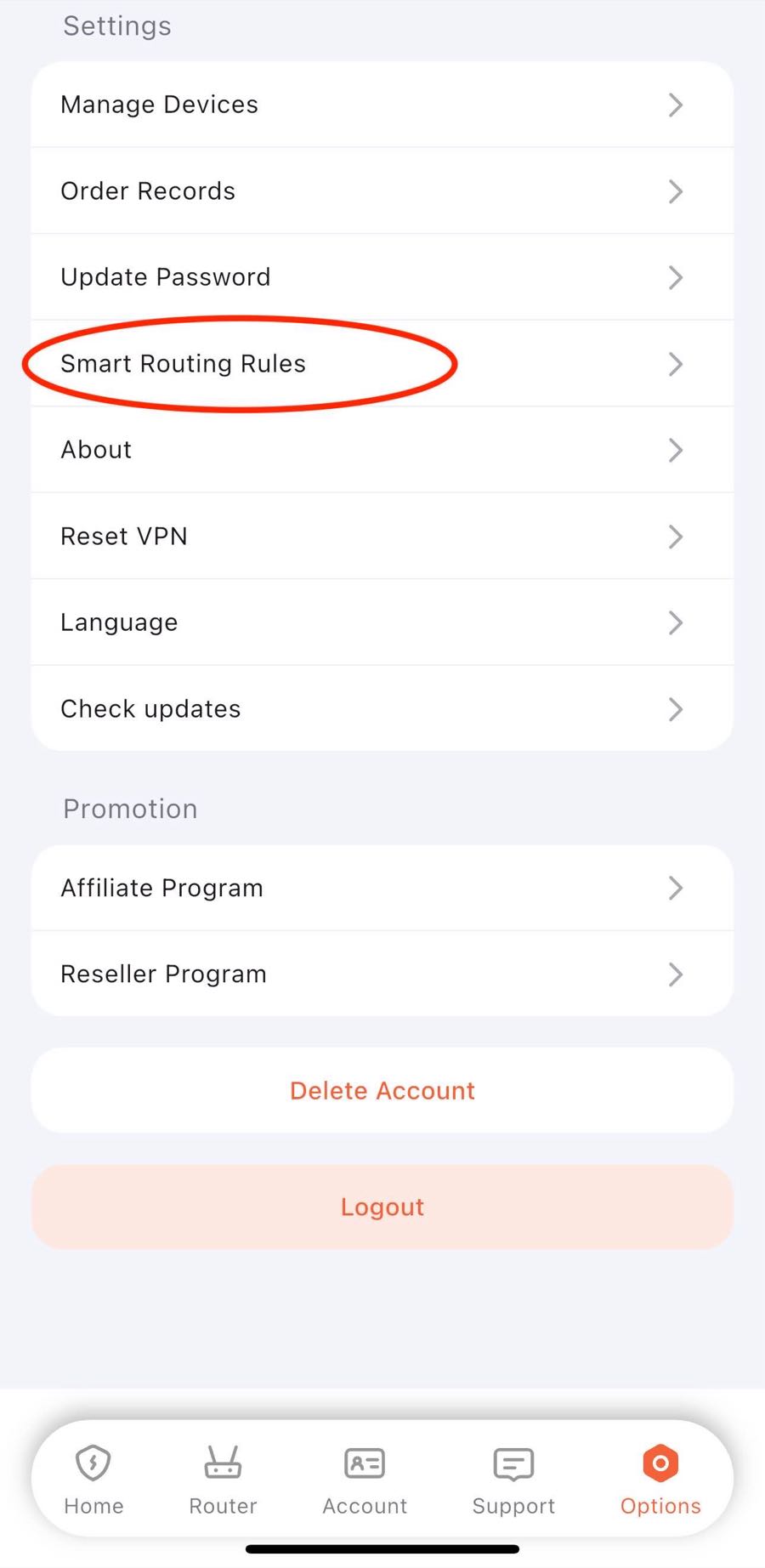
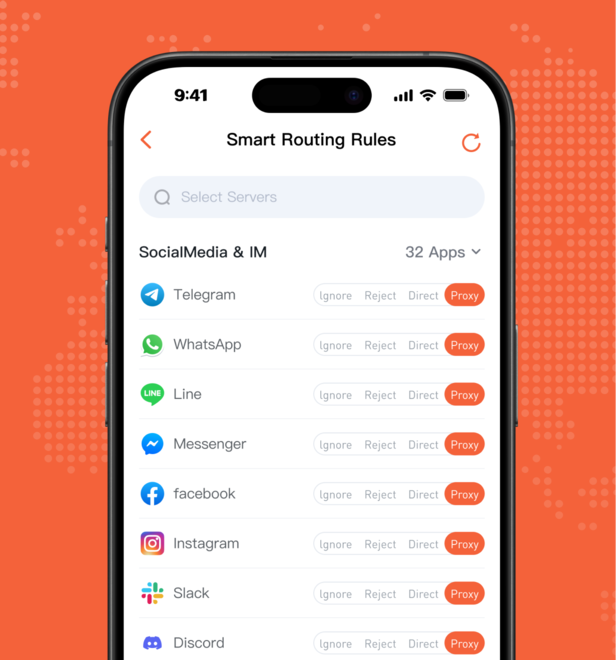
Step 2: Find Your App
• Use the search bar at the top to find a specific app
• Or browse by category: General, Productivity, etc.
• Tap "Expand All" to see all apps at once
🎯 Surflare automatically recognizes 400+ popular apps and categorizes them, for example:
- Productivity: Office365, Salesforce, Zoom
- AI Tools: ChatGPT, Claude, Gemini
- Social & Media: Twitter, Instagram
Step 3: Choose Routing Action
For each app, tap the button to select:
- Proxy → Traffic goes through VPN (protect privacy and security)
- Direct → Traffic bypasses VPN (faster local access)
- Reject → Block all connections (block ads and malicious sites)
- Ignore → Use system default (follow global routing rules)
Common Examples
Example 1: Work Apps Through VPN
Set Office365, Salesforce, and Zoom to Proxy
Example 2: Local Banking Direct
Set your local bank app to Direct for better compatibility
Example 3: Block Ads
Create custom rules to Reject ad domains
Advanced: Custom Rules
Tap "Custom Rules" at the top to create precise routing rules using domain names or IP addresses:
DOMAIN,google.com,PROXY Route google.com exactly (must match completely) through VPNDOMAIN-SUFFIX,google.com,DIRECT Match domains ending with google.com (includes www.google.com, mail.google.com, etc.) to bypass VPNDOMAIN-KEYWORD,ads,REJECT Block all domains containing "ads"⚠️ Important: After changing Smart Routing policies:
- Your changes are saved automatically
- Reconnect to the VPN for changes to take effect