Set up Surflare VPN on Android (APK)
This is a great solution if you're unable to download Surflare from the Google Play Store.
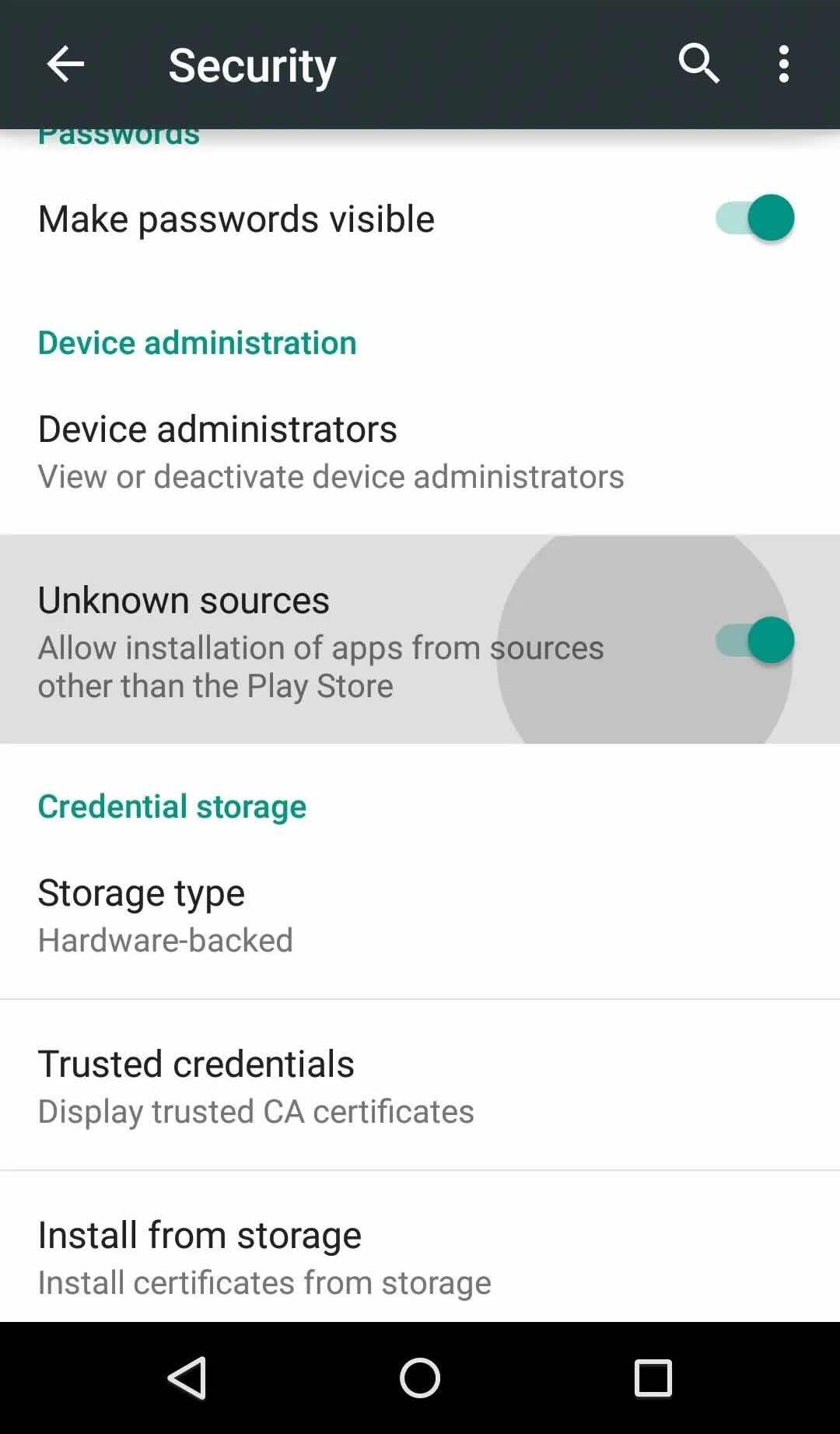
Enable installation from unknown sources
Go to your device Settings > Security (or Privacy), and enable "Install from unknown sources" or "Allow installation from this source".
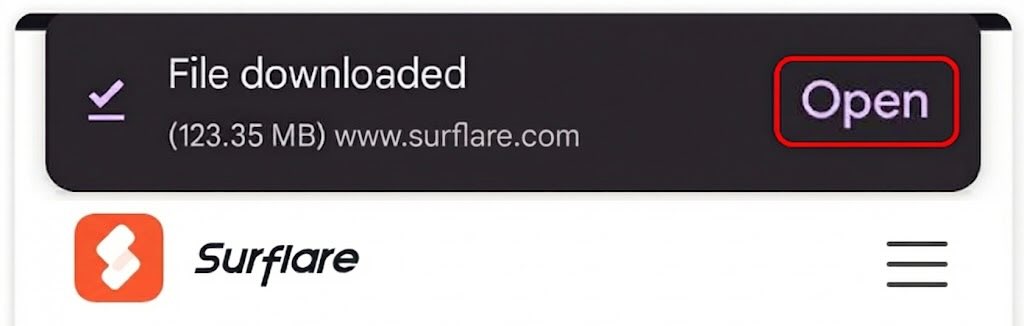
Download the APK file
Download the Surflare APK file directly to your Android device.
Install the APK
Open the downloaded APK file from your Downloads folder or notification panel. Tap "Install" to begin the installation.
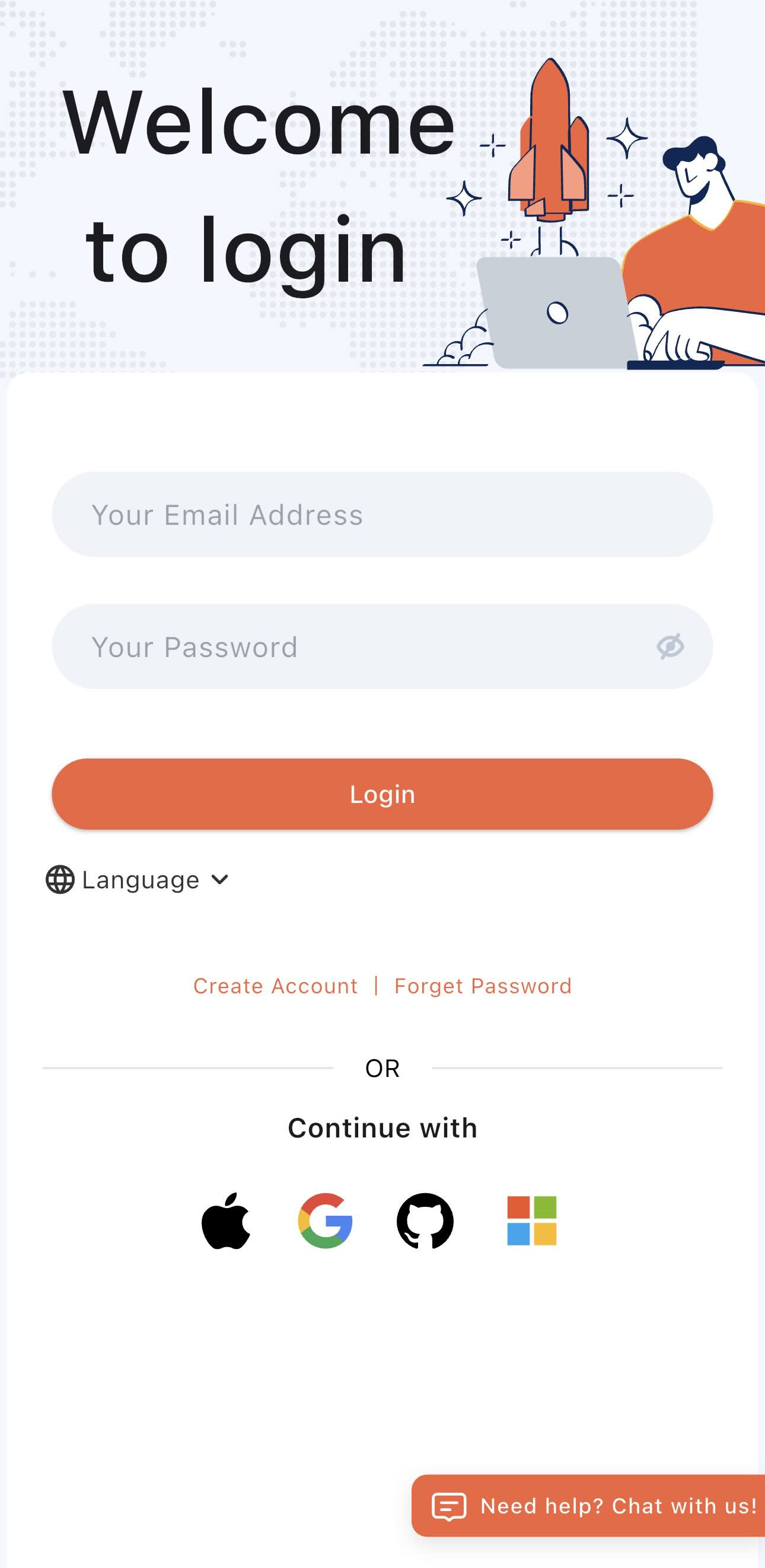
Log in to your account
Open the Surflare app after installation. Tap "Log in" and enter your email and password.
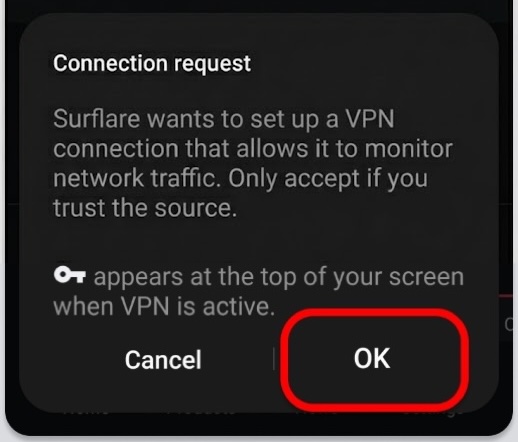
Grant VPN permission
When connecting for the first time, Android will ask you to approve the VPN connection request. Tap "OK" to allow.
Connect to VPN
After logging in, the server is set to "Auto Best" by default. Simply tap the Connect button to connect to the fastest server based on your location.
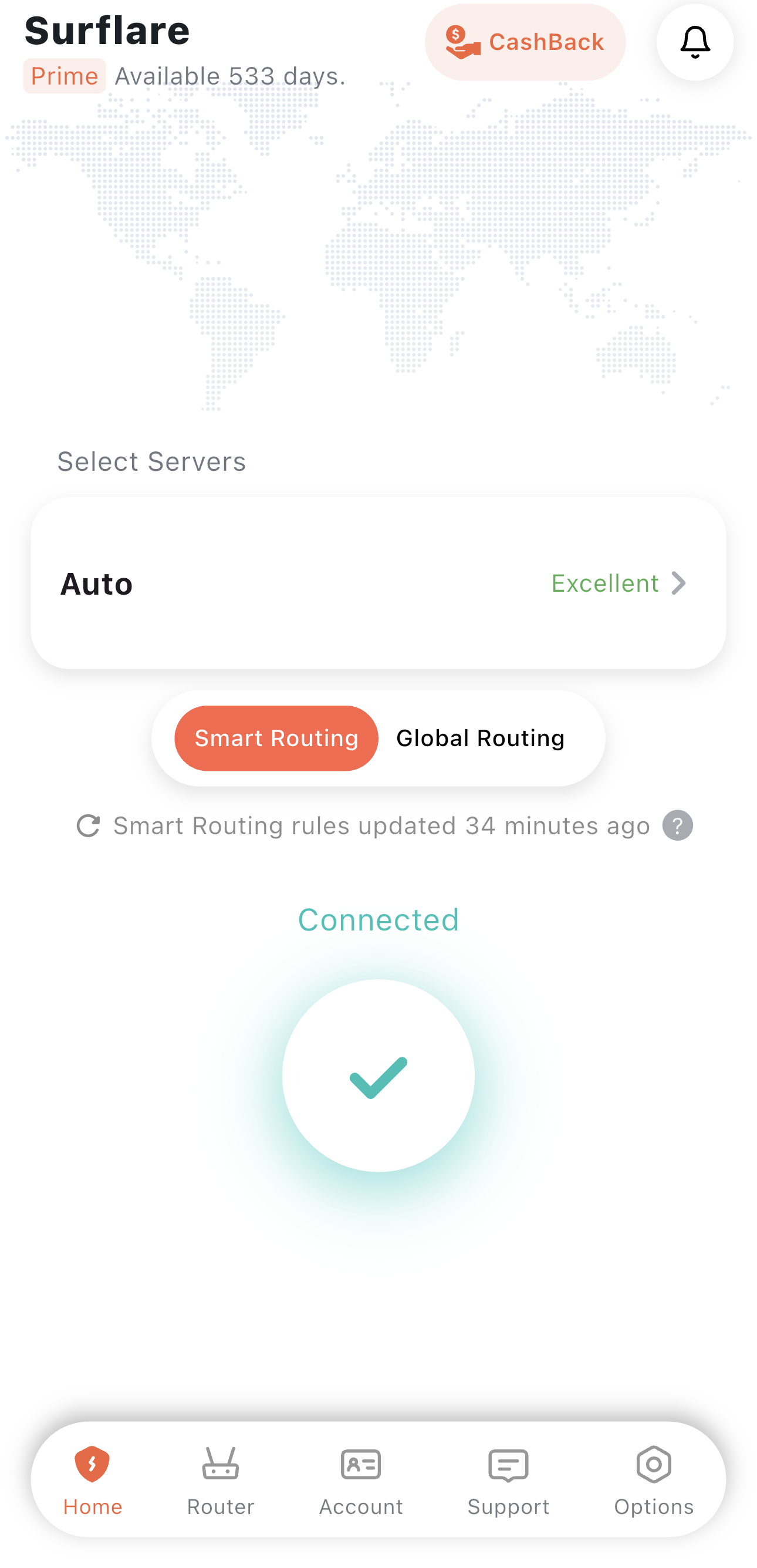
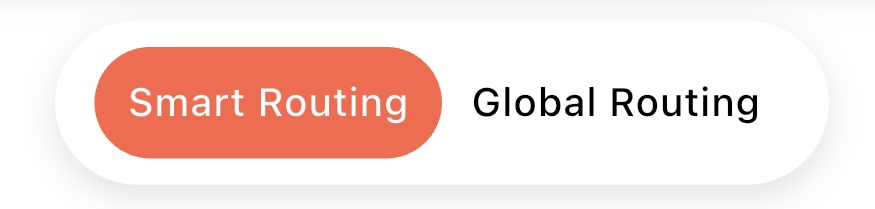
You can also choose a specific server location, configure routing modes, or enable Multi-Hop VPN as needed.
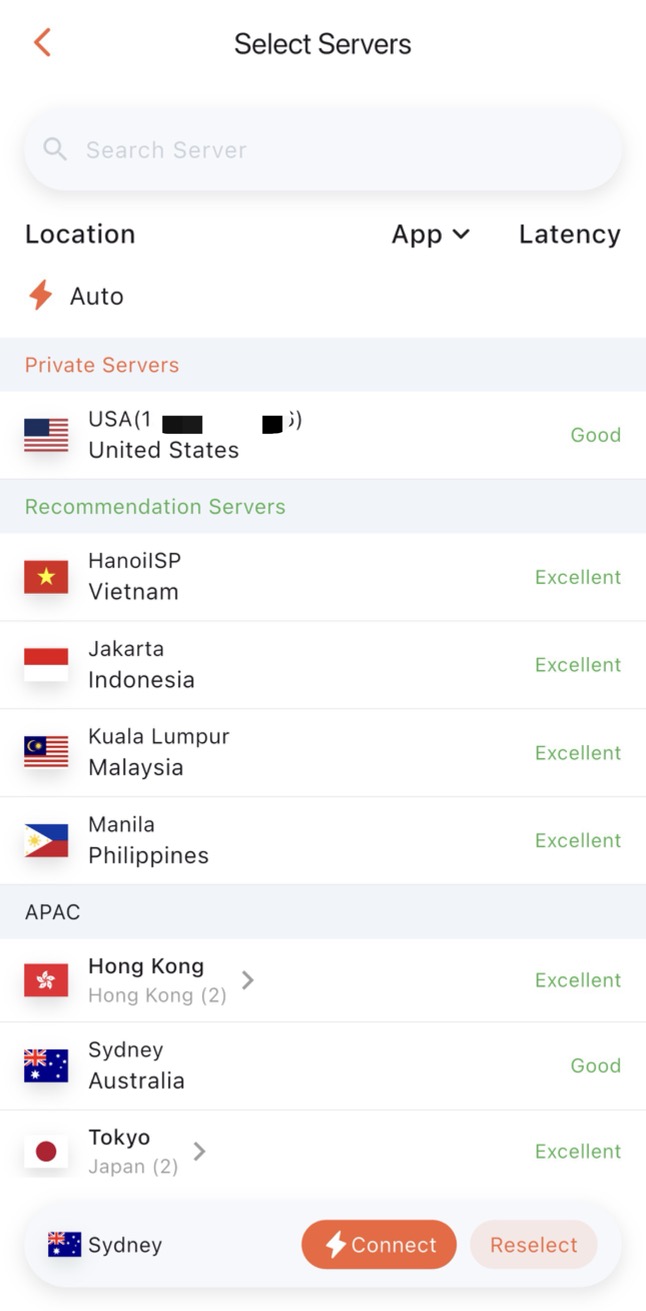
VPN Server Selection
- Auto Detect (Recommended)
Automatically connects to the fastest server. Best for general use when you don't need a specific location.
- City
If you need to access from a specific country or city, select the desired location. When multiple servers are available in one city, the app automatically connects to the fastest one.
- Specific Server
Manually select an individual server from the list if needed.
Routing Modes
Transit Server (Multi-Hop VPN)
Surflare will automatically find the fastest nearby relay server to forward your data, significantly improving connection speed.
You can also specify a transit server manually if needed.
Once you have configured your preferences, tap the Connect button to start your VPN connection.
Verify Your Connection
After connecting, check your internet IP address in the app to confirm you are connected. Try accessing apps and websites to ensure everything works as expected.